
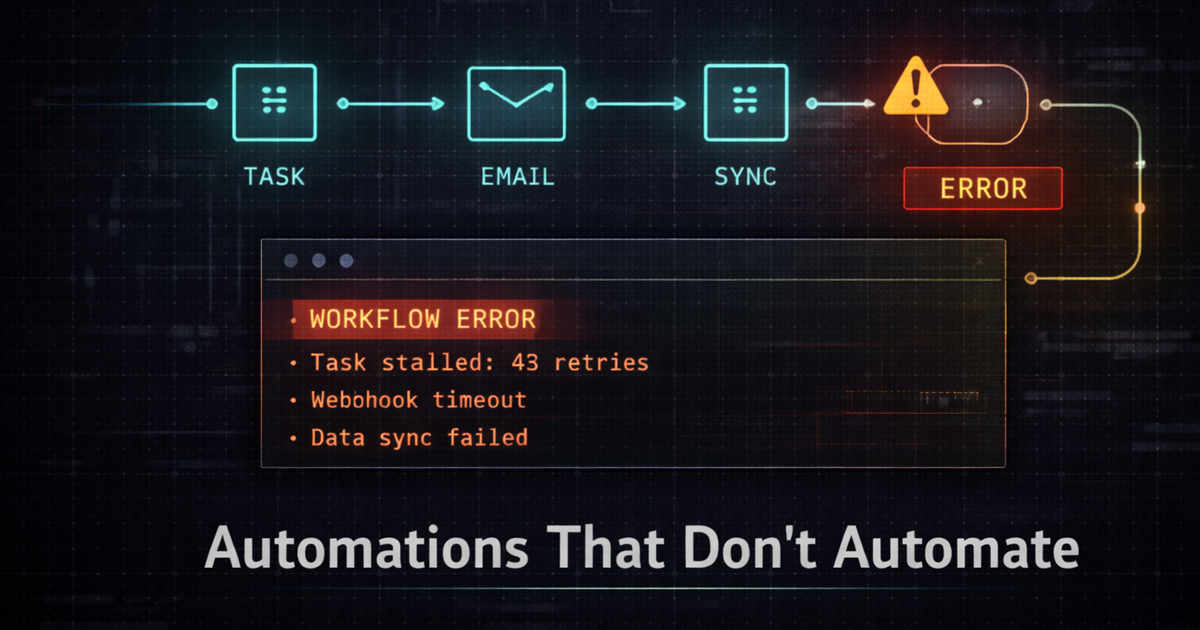


When Systems Add Work Instead of Removing It
Automation is supposed to reduce effort, eliminate repetition, and create consistency. Yet many businesses end up with systems that technically exist, but still require constant babysitting. Tasks fire late. Data doesn’t sync. Staff step in “just this once”…until manual work becomes the norm again.
What Broken Automation Looks Like in Practice
Failed automation rarely announces itself with errors. Instead, it shows up as exceptions, edge cases, and workarounds.
- Orders that should trigger emails but don’t
- Inventory updates that lag behind real sales
- Shipping labels that require manual intervention
- CRM records that only partially populate
- Staff checking dashboards “just to be sure”
When humans become the safety net, automation has already failed.
The Most Common Reasons Automation Breaks
1) Automating on Top of Unstable Systems
Automation magnifies whatever it touches. If the underlying system is inconsistent, automation doesn’t fix it…it
spreads the inconsistency faster.
- Unreliable checkout or order creation
- Inconsistent product or customer data
- Manual exceptions baked into workflows
2) Too Many Tools in the Chain
Each integration point is a potential failure. When automations rely on long chains of plugins, APIs, and third-party
services, reliability drops sharply.
- Webhook → middleware → plugin → external API
- Rate limits and silent timeouts
- Updates breaking one link in the chain
3) No Error Handling or Fallback Logic
Many automations assume success. When something fails, nothing happens…and no one knows.
- No logging of failed actions
- No alerts when workflows stall
- No retry or recovery mechanisms
4) Automating the Wrong Things
Not everything should be automated. When automation is applied without intent, it creates complexity instead of
clarity.
- Over-automating rare edge cases
- Automating decisions that need human judgment
- Building workflows no one fully understands
Why “Mostly Works” Is the Most Dangerous State
Systems that fail completely get fixed. Systems that mostly work linger. Teams compensate quietly, processes adapt,
and technical debt grows unnoticed.
Over time, businesses lose trust in their own systems. Automation becomes something to double-check instead of relying on.
A Framework for Automation That Actually Works
Step 1…Stabilize the Core Workflow First
- Ensure orders, payments, and data creation are consistent
- Remove manual exceptions before automating
- Fix reliability before adding speed
Step 2…Shorten the Automation Chain
- Reduce unnecessary plugins and middle layers
- Prefer direct integrations where possible
- Document every step in the workflow
Step 3…Design for Failure, Not Perfection
- Log every automated action
- Alert when automation stalls or fails
- Build safe retries and fallbacks
Step 4…Audit Automation Regularly
Automation isn’t “set and forget.” Systems change. APIs update. Business rules evolve.
- Review workflows after updates
- Test automations under real conditions
- Remove workflows that no longer serve a purpose
The Bigger Picture…Automation Is a Trust Contract
Good automation disappears into the background. It does its job quietly and predictably. Bad automation forces
humans back into the loop, eroding confidence and efficiency.
At WebAuthorings, automation is treated as infrastructure, not convenience. If it can’t be trusted under pressure,
it doesn’t belong in production.